
|
Chess Complete1.0
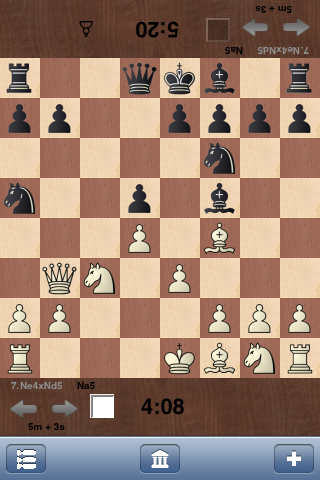
Chess Complete is a chess playing app for the iPhone, iPad, and iPod touch. It consist of a configurable human-like playing engine,
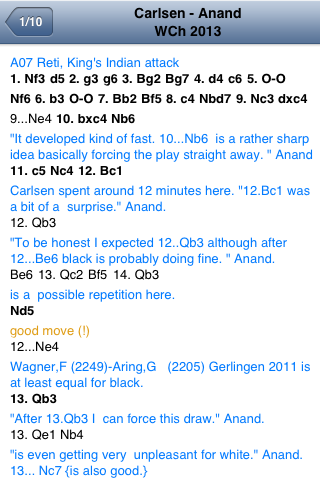
an innovative PGNViewer with support for variations, an electronic two players chess board with 2D or 3D pieces, and extensible training module.
|
 |
 |
 |




HELP
Play Computer
Select Play Computer from the main menu. Enter the moves by simply dragging the piece from its original square to the desired location.
You can also make a move by selecting the piece followed by the destination square.
To castle, move only the king two squares to the left or right in classic chess. You may have to slide the king on the rook or pass the rook in Chess960.
The rook will automatically follow.
If en passant capture is possible, you will specify the file on which it should be made.
When you promote a pawn the program will offer you a choice of pieces to select from.
Once you enter a legal move, the program responds within a few seconds with its own move.
The option (+) button offers several game options: Start a new game as White or Black, Enter Moves freely, Resign or stop the game, Save the game, or change settings.
Two Players
When using the electronic board to play against another human player, your opponent pieces are shown upside down by default.
You may choose to rotate your opponent pieces whenever it is your turn to move.
The option (+) allows you to stop, save, or start a new game.
Load PGN
This feature comes with three major sections, for three different types of databases:
- Common: Samples databases provided for your convenient
- User Uploaded: Databases you uploaded though mail or DropBox
- Saved Games: Games you played
Training
A total of 1021 puzzles have been selected for your entertainment, as well as 45 learning positions to guide your reflection in various aspects of the game.
- Puzzle: Solve 1000 puzzles.
- Kid's Puzzle: Selected puzzle to train the kids (21 positions).
- Simple Mates: Chess Complete teaches you how to mate (7 positions).
- Ending: Ending you must know (11 positions).
- Fundamentals: Fundamental positions you must know (12 positions).
- Tactics: Tactical position you must learn to recognize (7 positions).
- Strategy: Learn the strategy to carry in certain types of positions (8 positions).
Setup a Position
Choose a piece from the list and click on the square you want to put it.
Click on a square with a piece to delete it.
You can clear the board or set the starting position.
You may copy/paste FEN position to/from the clipboard.
Once the position is setup, you may provide castling rights, side to move, and En Passant square.
Settings
Change board appearance, timing, computer playing strength and more.
The following settings relate to appearances and may be changed while the game is on the way:
- Board style
- Pieces style
- Table style
- show coordinates
- show legal moves
- show evaluation
- sound effects
- figurine notation
- show variations
Select a playing strength from an Elo of 800 to 2400 with 100 increments. If you select an Elo of 0 as playing strength, the computer will select a random move among all the legal moves of a given position.
You may play under four types of time control:
- 1.Fixed time;
- 2.Time + increment;
- 3.Increment only; by setting a time of 0 + an increment greater than 0;
- 4.Casual, by setting both time and increment to 0; user has no time pressure, but computer has 5s per moves.
Help
Use the about button to view version information.
The link on the about page will show this help page.
Click on support button to sends an email to OCEE Inc. through your device.